Facebook Create Business: Step-by-Step Setup
01/29/2026

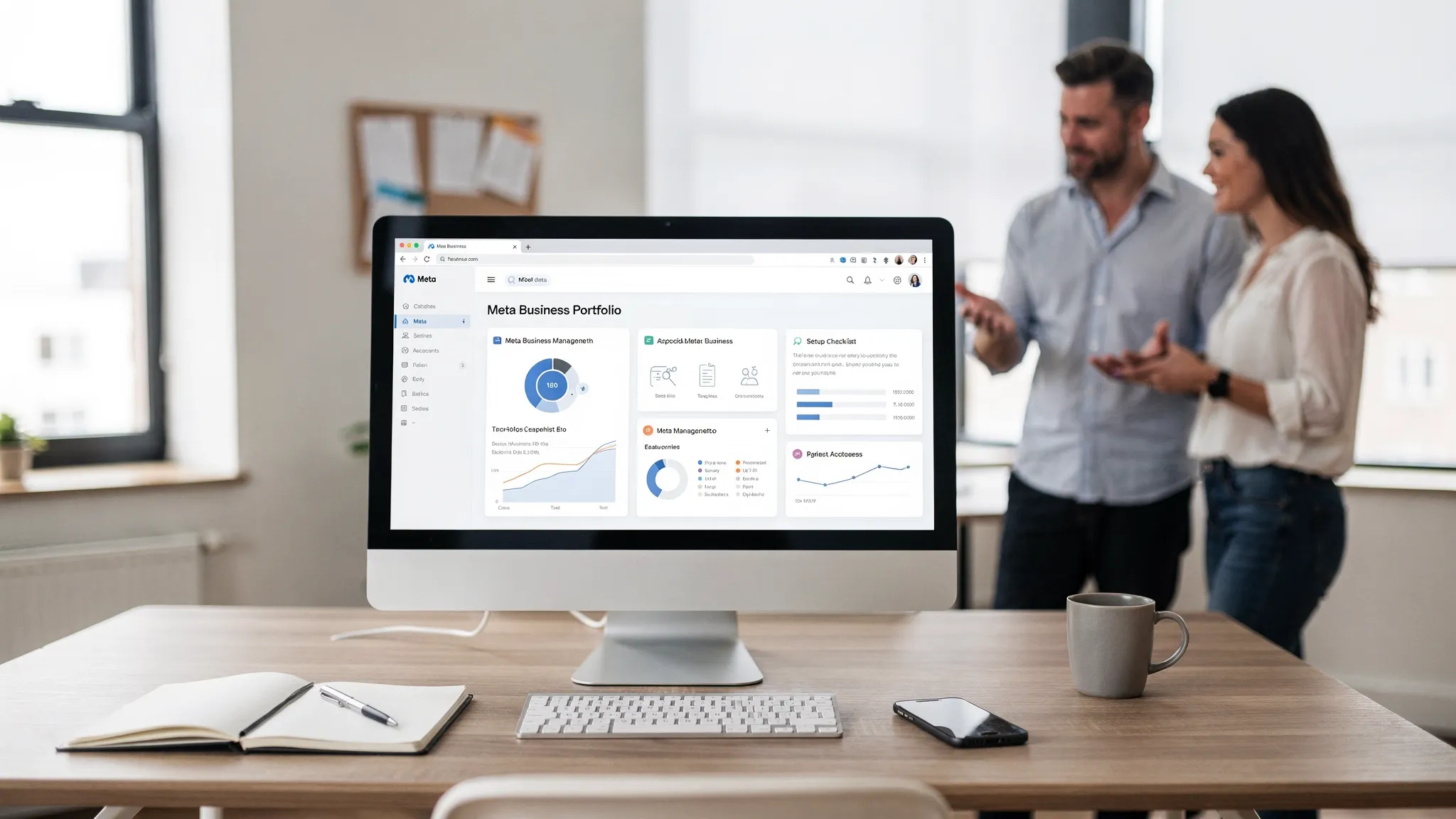
If you’re searching “Facebook create business,” what you usually want in 2026 is to create a Meta Business Portfolio (the modern replacement for what many people still call “Facebook Business Manager”). This is the control center that lets you manage your Facebook Page, ad accounts, Pixels, people, permissions, and connected assets in one place.
Below is a practical, step-by-step setup that works for most small businesses and marketing teams. It’s written to help you get from “no setup” to “ready to run ads” without permission chaos later.
What you’re creating (quick map)
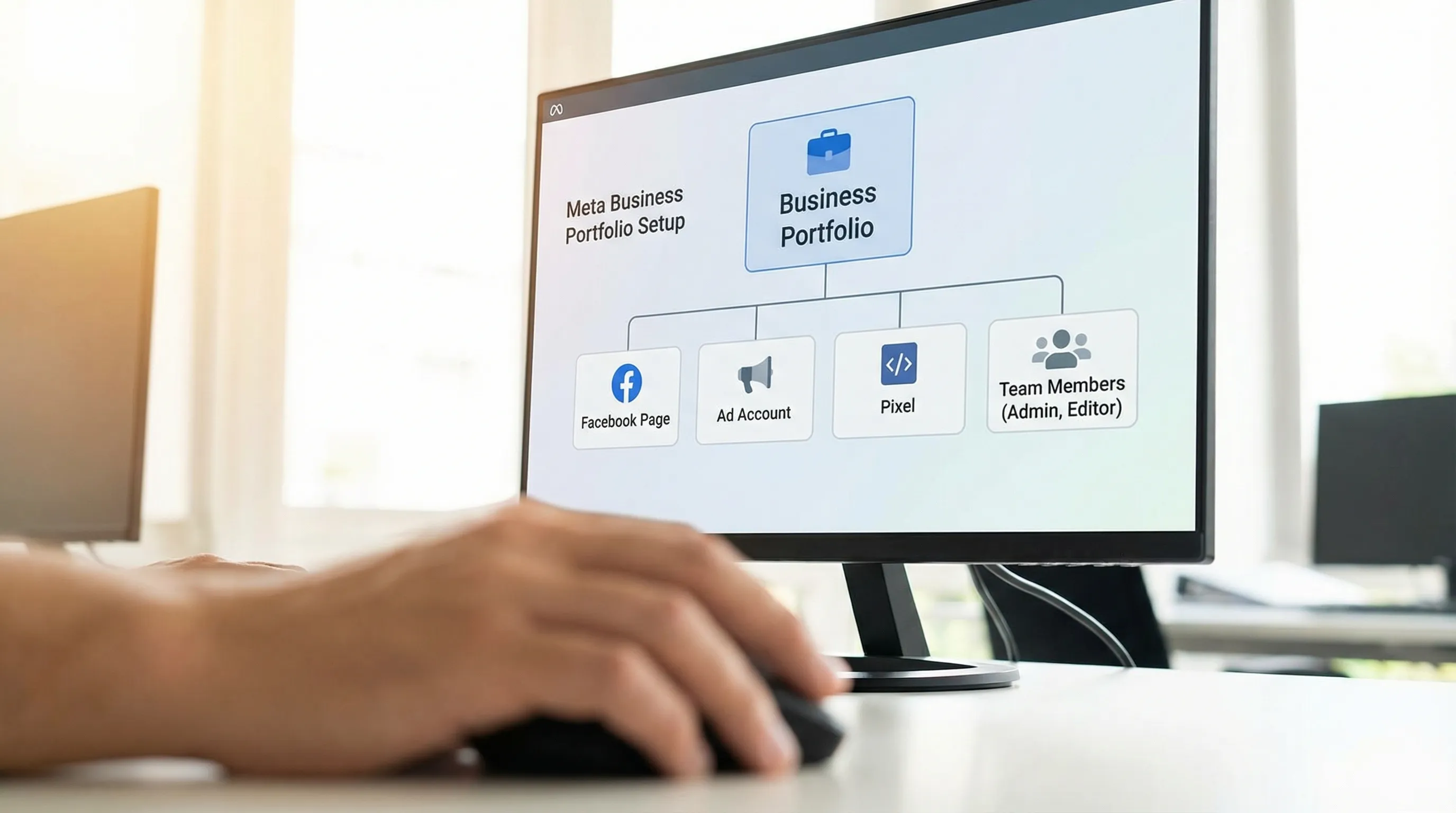
Meta’s naming changes a lot, but the building blocks are stable:
- Facebook Page: Your public presence (posts, reviews, messages).
- Meta Business Portfolio: The business container that holds assets and permissions.
- Ad Account: Where campaigns, billing, and reporting live.
- Pixel (and often Conversions API): Tracking and optimization.
If you want Meta’s official entry point, start at Meta Business.
Before you start: 6 prerequisites that prevent 90% of setup issues
- A real personal Facebook profile (Meta requires a personal identity to administer business assets).
- Two-factor authentication (2FA) enabled on your profile.
- A work email you control (avoid using a personal email if possible).
- A payment method (card or PayPal depending on region) ready for ad billing.
- Your website domain (if you plan to run conversion campaigns).
- Clarity on ownership: who should be the long-term admin (owner or ops lead, not a freelancer).
Meta’s security guidance changes, but 2FA and limiting admin access are consistently recommended in their help documentation.
Step 1: Create your Meta Business Portfolio
- Go to Meta Business.
- Click Create account.
- Enter:
- Business name
- Your name
- Business email
- Confirm your email if Meta prompts you.
At this point, you have the “container.” Next you’ll add assets.
Step 2: Add (or create) your Facebook Page
Inside Business settings, you’ll typically see options to Add a Page or Create a new Page.
- Create a Page if you don’t have one yet.
- Add a Page if your business already has one and you’re an admin on it.
Practical tip: choose your Page name, category, and username carefully, because changing branding later can create confusion with ads, messaging, and approvals.
Example: if you run a product-based brand that relies on strong visual identity (like custom pet portraits from PawsLife), you’ll want your Page name, profile image, and “About” section to match your storefront so customers recognize you immediately when they see ads.
Step 3: Add people and assign roles (keep it minimal)
Go to Business settings and add team members by email. Start with the smallest set of roles needed.
A common mistake is giving everyone full admin rights “just in case.” That increases risk and makes audits painful.
Here’s a simple, safe baseline:
| Team member | Business-level role (typical) | Why it matters |
|---|---|---|
| Owner / ops lead | Admin | Can recover access and manage security settings |
| Media buyer | Employee (then grant ad account permissions) | Limits blast radius if an account is compromised |
| Analyst | Employee (then grant reporting access) | Avoids accidental changes to billing or assets |
| Developer (tracking) | Employee (scoped to Pixel/CAPI tasks) | Keeps technical access separate from finance/admin |
For deeper role details, Meta’s official help center is the best source to confirm current role names and capabilities.
Step 4: Create or add an ad account
In Business settings, look for Accounts then Ad accounts.
You’ll usually have three options:
- Add an ad account (if it already exists and you own it)
- Request access to an ad account (if someone else owns it)
- Create a new ad account
If you are a small business starting from scratch, “Create a new ad account” is the typical path.
When creating the ad account, pay attention to:
- Time zone: This impacts reporting and daily budget behavior.
- Currency: Often cannot be changed later.
Step 5: Set up billing and payment method
Inside the ad account’s billing settings:
- Add a payment method.
- Confirm the business address and tax info as needed.
- Decide who should have billing access.
Operational rule: keep billing permissions limited to finance and the business admin. Campaign builders rarely need billing access.
Meta’s billing flows differ by country and account history, so expect occasional verification prompts.
Step 6: Connect Instagram (and other relevant accounts)
If you run ads to Instagram placements or manage DMs, connect your Instagram account to your business.
- In Business settings, find Instagram accounts and connect.
- Confirm that the right people have the right access.
If you use WhatsApp for customer support, you can connect that too, but only do it if you have a clear owner for messaging and compliance.
Step 7: Install the Meta Pixel (and plan for Conversions API)
If you plan to optimize for purchases, leads, or key actions, set up tracking early.
- In Business settings, go to Data sources then Pixels.
- Create a Pixel.
- Install it on your website.
Meta’s official Pixel documentation is here: About the Meta Pixel.
If your business depends on accurate conversion measurement (especially with modern privacy constraints), ask your developer about Conversions API. Meta maintains official guidance here: Conversions API.
Step 8: Verify your domain (recommended for conversion campaigns)
If you run conversion campaigns and care about event prioritization and trust signals, domain verification is worth doing.
Meta’s domain verification instructions are here: Verify your domain.
Most teams verify via DNS TXT record, because it’s clean and stable.
Step 9: Consider Business Verification (when you should do it)
Business Verification is not always required on day one, but you should plan for it if you:
- Spend meaningfully on ads
- Manage multiple people/vendors
- Need access to certain APIs or advanced features
- Want fewer interruptions from security checks
Meta’s documentation changes by region and account history, so follow the prompts inside your Business settings when you see them.
Step 10: Lock down security and governance
This is where most “we lost access” stories begin. Do these immediately:
- Require 2FA for everyone who has access.
- Keep two admins: the owner plus a trusted backup (not an agency).
- Remove ex-employees and vendors quickly.
- Review access quarterly.
If you work with an agency, the clean pattern is: client owns the assets, agency gets partner access (scoped permissions), rather than sharing passwords.
A fast “ready to launch” checklist (10 minutes)
Use this as a final pre-launch sanity check:
- You can log in at Meta Business and see the correct Business Portfolio.
- Your Page is inside the portfolio and you can publish a test post.
- Your ad account is connected and billing is active.
- The Pixel is receiving events (test with Meta’s diagnostics).
- Your domain is verified (if you’re optimizing for conversions).
- The right people have access, and nobody has more permissions than they need.
Common problems (and fixes)
“I can’t see the Page or ad account I need.”
This is usually one of three things: wrong login, wrong Business Portfolio, or missing permissions. Confirm you’re using the correct personal profile and portfolio context.
“My agency asked for admin access.”
Push back and ask for a partner-based access request with specific permissions. Admin access should be rare and temporary.
“Billing won’t go through.”
Double-check:
- Address and ZIP code match the payment method
- Card supports online and recurring payments
- No bank blocks
If it persists, try a different payment method before you rebuild anything else.
“Pixel is installed but conversions look wrong.”
Validate events in Meta’s diagnostics, then confirm that your website is not firing duplicate events (common with multiple plugins). If you’re using server-side tracking, confirm deduplication is configured.
If you’re an agency: creating the business is only half the work
Creating a Meta Business Portfolio is straightforward. The slow part is usually collecting the right IDs, permissions, and approvals from clients without endless back-and-forth.
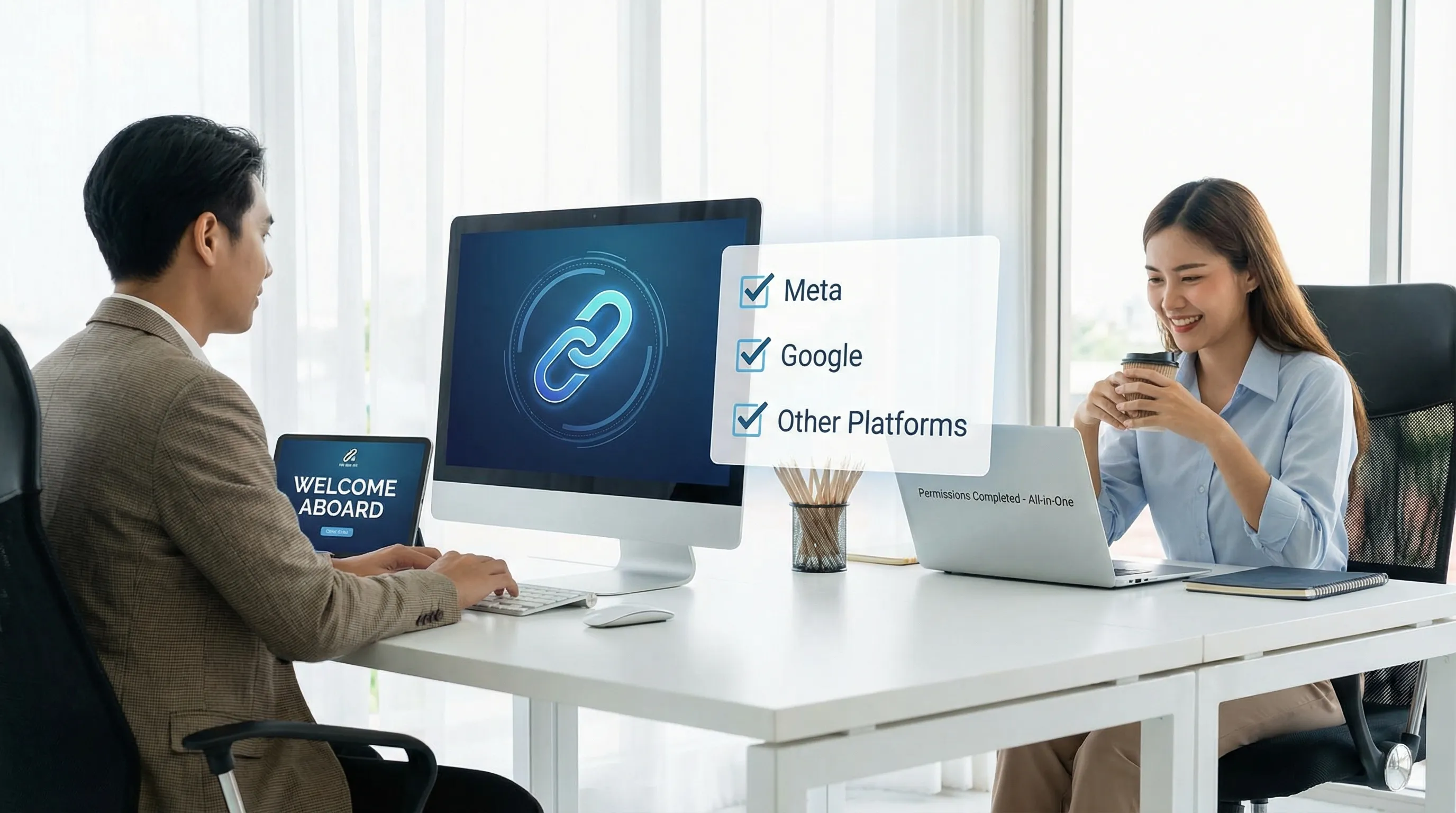
Connexify is designed to streamline client onboarding for agencies and service providers using a single branded link, helping teams set up secure access across platforms and reduce onboarding time from days to seconds.
Frequently Asked Questions
Is Meta Business Portfolio the same as Facebook Business Manager? It’s the modern name for the business container that many people still call Business Manager. The core idea is the same: manage assets and permissions centrally.
Do I need a Facebook Page to create a business? You can create a Business Portfolio without a Page, but most businesses will need a Page to run certain campaigns, build credibility, and manage messaging.
Can I create more than one business in Meta? Yes, many users can create multiple business containers, but limits vary based on account history and verification. Create only what you truly need.
Should my agency own my ad account? In most cases, no. Best practice is client-owned assets with scoped partner access for agencies. This reduces risk if you switch vendors.
What’s the minimum I need to run my first ad? A Business Portfolio, a Page, an ad account with active billing, and the right permissions. For conversion campaigns, add Pixel and domain verification.
Start faster with a one-link onboarding flow
If you’re setting this up for clients (or you’re tired of chasing admins, IDs, and permissions over email), take a look at Connexify’s client onboarding software.
- Explore Connexify at connexify.io
- Or book a demo and see a branded onboarding link in action
- You can also start with the 14-day free trial (no installation required)